
Teleprompter for Phone
A teleprompter for phone runs in Safari on iPhone or Chrome on Android: paste your script, then tap the text to start. The page starts with phone-sized text, side margins and a reading line, and needs no install. It does not record, so a camera or a second phone does the filming, and the free plan includes 5 completed prompting sessions per month.
Free · runs in your browser · nothing is uploaded
Yes, a phone works as a teleprompter: open this page in Safari on iPhone or Chrome on Android, paste your script, and tap the text to start. Text size, side margins and the reading line start at phone values (34 px, 4 %, 28 % from the top), and no keyboard is needed because tap and drag do the work. The page does not record, so the phone is the display and a camera or a second phone does the filming. A check panel under the prompter shows what your own phone supports, because iPhone Safari and Android Chrome differ on full screen and screen wake. A free teleprompter app for iPhone or Android, with no install.
The free plan includes 5 completed prompting sessions per month, with or without recording. Pro includes unlimited sessions.
Paste your script into the teleprompter tool, then tap the text to start and do a short test before you record.
At a glance
A teleprompter for phone is a web page that shows your script on an iPhone or Android screen while you read to a camera. You open it in Safari or Chrome, paste the script, and tap the text to start.
- The free plan includes 5 completed prompting sessions per month.
- Text size, side margins and the reading line start at phone values (34 px, 4 %, 28 % from the top).
- English pace starts at 150 words per minute.
- The screen can stay awake while playing with Chrome 84 and later or Firefox 126 and later on Android, and with Safari on iOS 18.4 and later.
- The page does not record, so a separate camera or a second phone does the filming.
- Safari on iPhone cannot use element full screen, so the prompter fills the browser window instead.
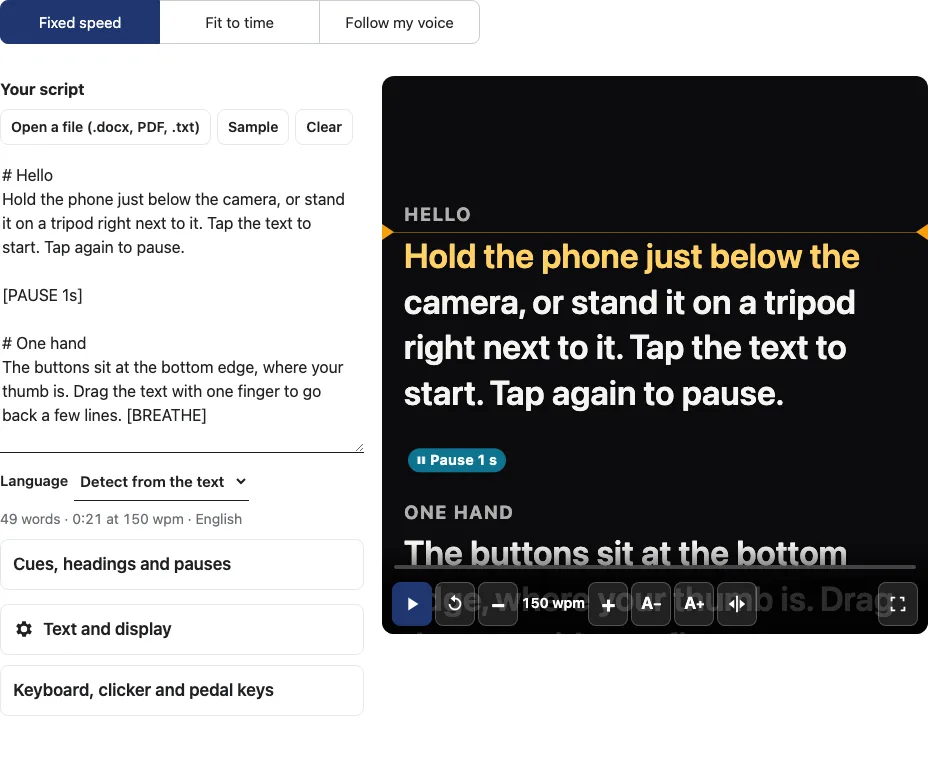
How to use your phone as a teleprompter
- Open this page in Safari (iPhone) or Chrome (Android). To add an icon: on iPhone tap Share, then Add to Home Screen; on Android open the Chrome menu and choose Install app or Add to Home screen.
- Paste your script into Your script.
- Set the pace with − and + (words per minute, English starts at 150), or choose Fit to time and type the length as m:ss.
- Put the phone directly under or beside the camera lens, or under beam-splitter glass. With glass, switch on mirror.
- Press the full-screen button, then tap the text to start. Tap again to pause; drag the text with one finger to go back.
- Open the page twice with a connection first if you want to use it later without one.
- Do a short test: start the text, glance at the lens, and check that you can read the lines from where the phone sits. If not, change the text size with A− or A+.
- If a call or message could interrupt the take, switch the phone to a do-not-disturb mode first, because a notification banner can cover the text.
- Start the camera or the second phone recording before you press Play on the prompter.
Why does teleprompter text look backward?
Teleprompter text looks backward because the glass reflects the screen, and a reflection reverses text left to right. The Mirror setting flips the text before it is shown, so the reflected copy reads normally. Turn Mirror on only when the phone sits under beam-splitter glass. For normal screen use, leave it off, or the words will appear reversed.
Mirror and Flip do different jobs. Mirror is for glass reflections, while Flip turns the text upside down for a phone mounted upside down. You can switch Mirror on or off with the M key on a keyboard, or change it under Text and display.
iPhone or Android: what works where
The same page behaves slightly differently on the two systems, mostly because of what the browser allows. The panel under the prompter checks your own phone; this table shows the usual picture from MDN browser compatibility data.
| Feature | iPhone (Safari) | Android (Chrome, Firefox) |
|---|---|---|
| Full screen for the text | no, the prompter fills the browser window | yes |
| Screen stays awake while playing | iOS 18.4 and later; in 16.4 to 18.3 only in a tab, not from the Home Screen | Chrome 84 and later, Firefox 126 and later |
| Floating window over other apps | no | no |
| Follow my voice | no | no |
| Add an icon | Share, then Add to Home Screen | menu, then Install app |
Where the wake lock is missing, raise the screen timeout in the phone settings before you record, or the screen may dim in the middle of a take.
Can you use your phone as a teleprompter?
Yes. Your phone can show the script while a camera records you, as long as the lens sees you and the screen stays in view. Because this page does not record, you need a separate camera or a second phone for the footage.
- Prop the phone with the script under or beside the camera lens, so you can look at the lens while reading.
- For a glass setup, place the phone under beam-splitter glass, turn Mirror on, and angle the glass so the reflected text faces you.
- Record with the camera app on another phone or a dedicated camera. A phone camera app cannot record behind the full-screen web page, so the second device must do the recording.
- Record a short test clip and check that the text is readable and not reversed.
How this tool works and where the numbers come from
Feature rows come from MDN browser compatibility data v8.1.7 (read 2026-10-25) and from feature detection in your own browser on this page. Layout, tap and drag were checked in headless Chromium with phone emulation at 375 px; real iPhone and Android devices were not tested.
Sources
- MDN, Element.requestFullscreen() browser compatibility (Safari: only on iPad, not on iPhone), read 2026-10-25
- MDN, Screen Wake Lock API and browser compatibility data (Chrome 84, Firefox 126, Safari 16.4; iOS 18.4 for Home Screen apps), read 2026-10-25
- MDN, Making PWAs installable (Add to Home Screen), read 2026-10-25
Questions, briefly answered
Is there a free teleprompter for the phone?
Yes. The free plan includes 5 prompting sessions per month. Open the page in Safari or Chrome and start. Adding it to your Home Screen is optional.
Does the iPhone have a built-in teleprompter?
The iPhone camera app does not show a script on screen, so this page fills that gap in Safari. Because Safari on iPhone cannot use element full screen, the prompter fills the browser window instead.
Does it work on Android or Windows?
Yes. On Android it runs in Chrome, which supports element full screen, and in Firefox. On Windows and other computers it runs in any current browser; see the laptop page. Real Android devices were not tested for this page, so try the controls on your own phone.
Will the screen stay on while the text scrolls?
Usually, when the browser supports a wake lock. That covers Chrome on Android 84 and later, Firefox on Android 126 and later, and Safari on iOS 18.4 and later. On iOS 16.4 to 18.3, it worked in a tab but not in Home Screen web apps.
Can I use it with one hand?
Yes in principle: the main actions are single-finger gestures. Tap the text to start or pause, and drag it up or down to move. Real devices were not tested for this page.
Does it work without an internet connection?
Yes, once the page has loaded online twice. After that, it keeps working offline on the same device.
What is the best teleprompter app for iPhone or Android?
For reading beside a camera, a free browser teleprompter is enough: add it to the home screen. If you need recording or a remote in one app, compare store apps on those features and their prices.
Can I use an iPhone as a teleprompter?
Yes. The iPhone is the display: paste the script, tap to start and put it under the lens or next to a laptop.
Related tools
- Online teleprompter: the full prompter with every control on one page.
- Teleprompter for iPad: larger text and pedal test for a tablet.
- Teleprompter app: web app or store app: what each can do.
- Teleprompter for YouTube: recording a video with a separate camera.
- Teleprompter speed: scroll speed and font size for your screen and reading distance.
- Speaking speed test: measure your words per minute before you set the pace.
- Mirror text: mirrored text for teleprompter glass.