
Teleprompter for Video
A teleprompter for video records your camera and microphone while the script scrolls over your own picture. Each take is saved as an MP4 or WebM file on your device when you press Save, and the script never appears in the video. The free plan includes 5 completed prompting sessions per month, and takes stay in the tab's memory until you save them.
Free · runs in your browser · nothing is uploaded
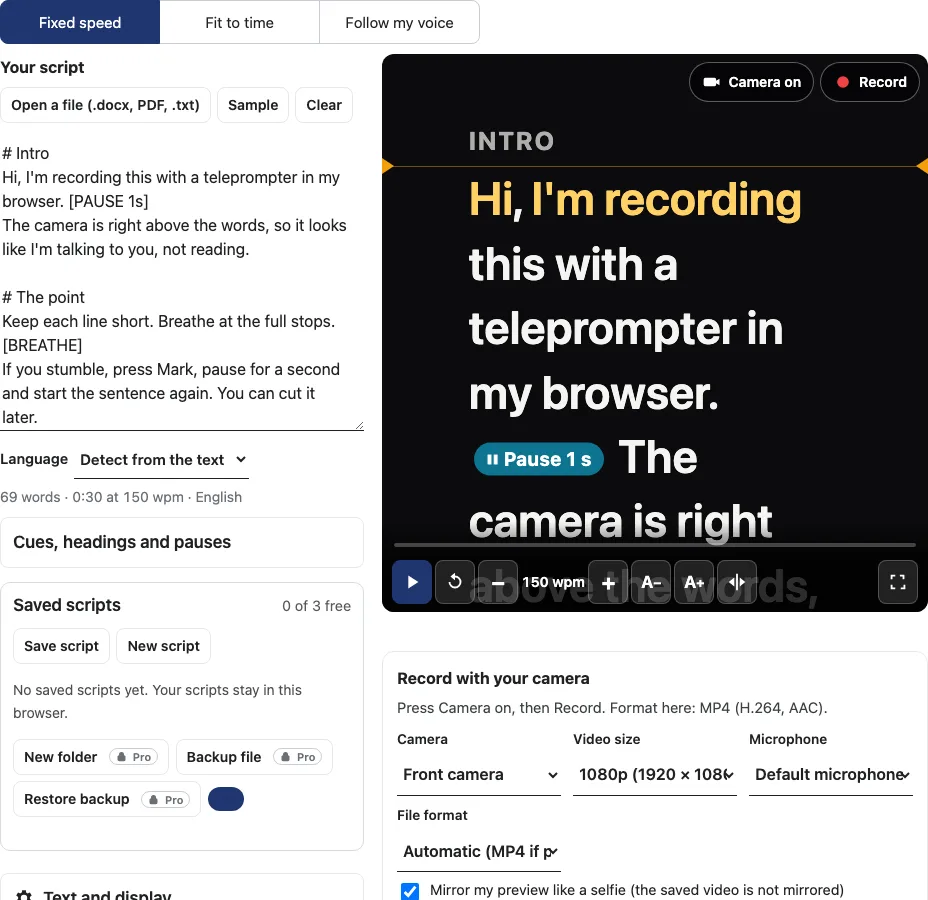
This page is a teleprompter for video with the camera built in. Turn the camera on and your own picture appears behind the scrolling script, so you can frame the shot and read in one place. Press Record and the prompter counts down, starts scrolling and records your camera and microphone at the same moment; press Stop and the take appears in a list below, ready to play, save as a file or delete. Each take stays in this browser tab until you save it. The file is MP4 where your browser can write it and WebM where it cannot, and the script never appears in the video. A video teleprompter for camera work, free in the browser.
Rehearse your delivery on Teleprompter practice before you record your first take on this page.
At a glance
A teleprompter for video shows your script over your live camera picture while it records your camera and microphone. The saved file contains only the camera picture and microphone sound, so the script does not appear in the recording.
- The countdown before recording starts is 5 seconds by default.
- The file is MP4 where your browser can write it, and WebM where it cannot.
- The page asks the browser for 1080p video at 5 Mbit/s plus 128 kbit/s audio, which is about 38 MB per minute.
- Recordings are not uploaded, and each take stays in your browser tab until you press Save.
- The saved video is not mirrored, even though the preview is flipped like a selfie by default.
- The free plan includes 5 completed prompting sessions per month.
How to record a video with a teleprompter
- Paste your script into the box below the prompter.
- Turn on Camera and allow camera and microphone access when the browser asks. Camera access needs an https page.
- In the settings, pick the video size (480p, 720p or 1080p) and the file format (Automatic, MP4 or WebM).
- Press Record. A countdown starts, 5 seconds by default, and recording begins when it ends. Use that time to find your first line.
- During the take, press Mark (or N) when you stumble or say a line you like, so you can find the spot later.
- Press Stop to end the take. The prompter pauses with it.
- Press Save on each take you want to keep. Every take shows its length, size, format and marks in a list.
The keyboard shortcuts are R to record or stop, N to add a mark, and Space to play or pause the text. Save take notes (.txt) downloads the mark times with the words that were under the reading line, which helps you find retakes in an editor. On phones, the Share button appears where the browser can share files.
Before a long session, record a 10-second test take and play it back: it shows whether the sound level is right, whether the format suits your editor and how much room a minute takes on this device.
How do I add a teleprompter in a video?
You do not burn the script into the video. Prompterline shows your text over the live camera picture, but the saved file contains only the camera and microphone, so the words never appear in the recording.
The reading line sits 20% from the top of the stage on this page, so your eyes stay close to a laptop or phone camera mounted at the top edge. The countdown is not in the file, because recording starts only when it ends. An option that stops recording 2.5 seconds after the script ends is on by default.
What file format is the recording, MP4 or WebM?
The page records MP4 when your browser can, and WebM when it cannot. With Automatic, you get an MP4 file (H.264 video and AAC audio) in Chrome and Edge from version 126 and in Safari. A browser that cannot record MP4 gets WebM (VP9 or VP8 video with Opus audio). The format menu lists only what your browser says it can record, and the line under the settings names the format before you start.
| Browser | File | What it means for editing |
|---|---|---|
| Chrome and Edge 126 or later | MP4 | Opens in most editors and phone galleries without conversion |
| Safari (Mac, iPhone, iPad) | MP4 | Same as above |
| Chrome and Edge before 126, other browsers without MP4 recording | WebM | Some editors and phones need a conversion to MP4 first |
How big does a take get?
The size depends on the video size you pick. These figures use the bitrates the page asks the browser for; the browser may use slightly less. Until you press Save, the take sits in the memory of the tab, so on a phone a long 1080p take is the first thing to run out of room.
| Video size | Bitrate requested | Per minute | 10 minutes | 30 minutes |
|---|---|---|---|---|
| 480p (854x480) | 1.2 Mbit/s plus 128 kbit/s audio | about 10 MB | about 100 MB | about 300 MB |
| 720p (1280x720) | 2.5 Mbit/s plus audio | about 20 MB | about 197 MB | about 590 MB |
| 1080p (1920x1080) | 5 Mbit/s plus audio | about 38 MB | about 385 MB | about 1,150 MB |
A 30-minute 1080p take therefore needs roughly 1.15 GB of memory before you save it. Worked example: a 6-minute YouTube talk at 720p is about 6 x 20 = 120 MB, three takes about 360 MB, which is close to the 400 MB point where the page warns on a phone. Save or delete takes as you go.
Limits to know before a long take
- iPhone and iPad: Safari can pause or stop the camera when the browser goes to the background or the screen locks. The take up to that moment is kept, but keep the page in front while you record.
- Memory: nothing is written to disk until you save, so very long takes can fail on phones with little free memory. Shorter takes are safer and easier to edit.
- Not tested on real phones yet: we checked the recorder in headless Chromium with a simulated camera and microphone on 2026-10-25, not on a real iPhone, iPad or Android phone.
More about recording
How do I share my recordings?
Press Save to download the file, then send it yourself. The Share button appears only where the browser can share files, which is typically on phones.
What browsers are supported?
Current browsers that offer camera access and MediaRecorder: Chrome and Edge from version 126 and Safari record MP4; other browsers record WebM if that is what they support. The page lists only the formats your browser can record. If a browser has no recorder for web pages, the Record button is switched off and the teleprompter still works. We have tested it in headless Chromium with a simulated camera, not yet on real iPhone, iPad or Android devices.
Can I use a teleprompter with my camera?
Yes. Turn on Camera, choose the front or back camera (or a named camera after you grant permission), and the script scrolls over the live picture. Keep the camera close to the reading line so your eyes stay near the lens.
How this tool works and where the numbers come from
Recording uses the browser’s getUserMedia and MediaRecorder; formats are chosen with MediaRecorder.isTypeSupported (MP4 H.264/AAC first, WebM VP9/VP8/Opus second). Sizes are the bitrates the page requests (480p 1.2, 720p 2.5, 1080p 5 Mbit/s video plus 128 kbit/s audio). Checked on 2026-10-25 in headless Chromium 145 with a simulated camera and microphone: MP4 and WebM takes, duration of both files, unmirrored recording, marks, downloads, auto-stop at the end of the script, refused permission, missing MediaRecorder. Not tested on a real iPhone, iPad, Android phone or in Safari or Firefox.
Sources
- MDN, MediaRecorder browser compatibility (Chrome 47, Firefox 25, Safari 14.1, Safari on iOS 14), read 2026-10-25
- Chrome Platform Status, MP4 container support for MediaRecorder (enabled by default in Chrome 126), read 2026-10-25
- MDN, MediaDevices.getUserMedia() (secure context, permission prompt), read 2026-10-25
- fix-webm-duration 1.0.6 (MIT): adds the missing duration to WebM files from MediaRecorder
Questions, briefly answered
Does the teleprompter text appear in my recording?
No. The saved file contains the camera picture and microphone sound only. The script is shown on the stage while you record, but it is not part of the video.
Where are my recordings saved?
Recordings are not uploaded. Each take stays in your browser tab until you press Save, which downloads the file to your device. Closing or reloading the tab deletes unsaved takes, and the page warns you before you leave.
Is there a time limit on a recording?
We set no time limit. The practical limit is your device’s memory, and the page shows a warning when takes in memory pass about 400 MB on a phone or 1.5 GB on a computer.
Is the saved video mirrored?
No. The preview is flipped like a selfie by default, using a checkbox, but the recorder captures the camera stream itself, so the saved file is not mirrored.
Why won’t some players skip to parts of my WebM file?
WebM files written by the browser’s recorder have no duration, and some players cannot seek through them. For WebM takes up to 300 MB, the page adds the duration with the open-source fix-webm-duration library (MIT).
Can I turn my phone into a teleprompter?
Yes, open the page in your phone’s browser and use it the same way, with the front camera at the top edge and the reading line just below it. iPhone and iPad Safari can pause or stop the camera when the browser goes to the background or the screen locks, and long takes may run out of memory. If the camera stops, the take up to that moment is kept.
Is there a free teleprompter available?
The free plan includes 5 completed prompting sessions per month, with or without recording. Pro includes unlimited sessions. No account or installation is needed. Your script and takes stay on your device.
What is the best teleprompter app for video recording?
It depends on your device and what you need. Prompterline suits one-take recordings on a laptop or phone when you want the prompter and the recorder on one page. We have not compared it against other apps, so check the features that matter to you. For a news or speech read, set a steady speed or Fit to time.
Related tools
- Online teleprompter - the prompter with the script box beside it, without the camera.
- Teleprompter for YouTube - use it when your script is for a YouTube upload.
- Teleprompter practice - rehearse your delivery before you record a take.
- Speaking speed test - measure how fast you talk before you set a script length.
- Script timer - estimate how long a script will run.
- Explainer video script template - start from a structure for an explainer video.