
Teleprompter for Zoom
Yes, you can use a teleprompter for Zoom by keeping the prompter in a browser window beside the call. On desktop Chrome, Edge or Firefox, Float on top keeps the text above the Zoom window. The reading line starts 12 % from the top, and an eye-line calculator shows how many degrees the text pulls your eyes off the lens. The free plan includes 5 completed prompting sessions per month.
Free · runs in your browser · nothing is uploaded
This page puts the Prompterline teleprompter next to your video call, with the settings a webcam needs: the reading line starts 12 % from the top of the text area, the side margins are wide, the text is smaller so more words fit near the lens, and there is no countdown. Where your browser allows it, a Float on top button moves the text into a small window that stays above Zoom, Meet or Teams, so you can park it right under the camera. Under the prompter, a browser check shows which extras work on your device, and an eye-line calculator tells you how many degrees the text pulls your eyes off the lens.
Start the prompter, paste your script into Your script, and set the reading line with the eye line panel.
At a glance
A teleprompter for Zoom is a script window you read during a Zoom call, placed under your webcam. Where your browser allows it, Float on top keeps the text in a small window above the call.
- The reading line starts 12 % from the top of the text area.
- The free plan includes 5 completed prompting sessions per month.
- Float on top works in Chrome 116 and later, Edge 116 and later, and Firefox 151 and later on desktop.
- The TU/e study found eye contact is still perceived when the gaze is within 1.2 degrees horizontally and 1.7 degrees vertically of the lens.
- In the worked example, a 12 % reading line places the text 1.5 cm below the camera, at an angle of 1.4 degrees.
Last checked:
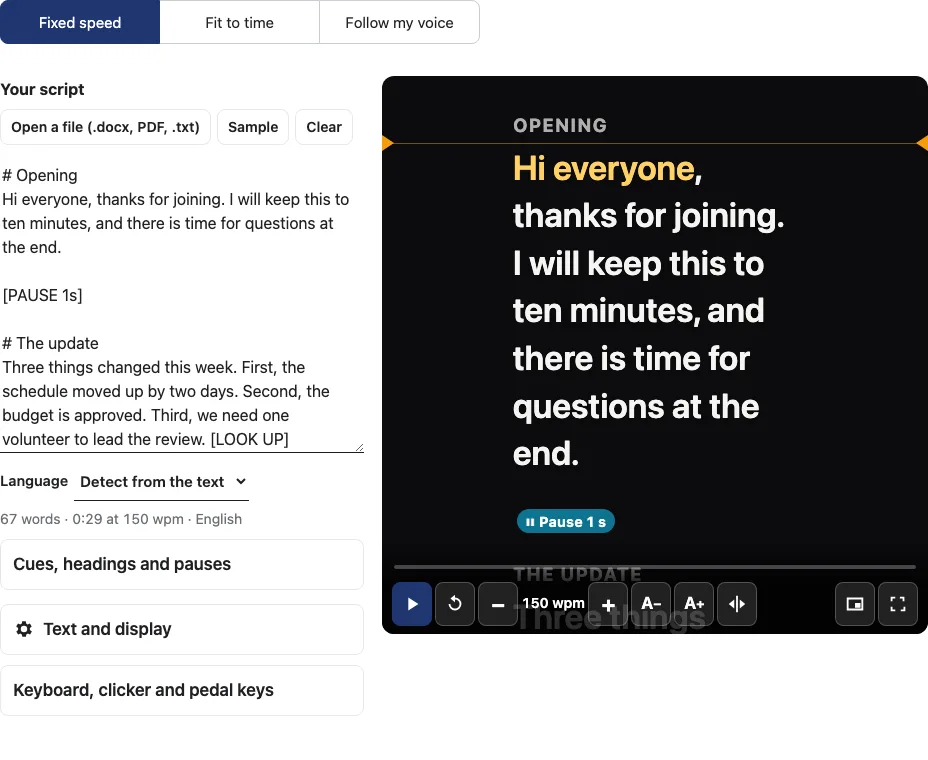
How to use a teleprompter in a Zoom call
- Paste your speech or talking points into Your script. Text in square brackets is shown but never read, and
[PAUSE 2s]stops the text for two seconds. - Set the pace: use − and + for words per minute (English starts at 150), or choose Fit to time and type your slot as m:ss.
- Scroll to the Eye line panel, pick your screen, enter the distance from your eyes to the screen and the height of the window you will use, then press Set reading line to … % (≤ 2°).
- Press Float on top (picture-in-picture) if it is shown, and drag the small window so the first line sits directly under your webcam. If the button is missing, keep the prompter in its own browser window beside the call and place it the same way.
- If you present, share a single window or a browser tab in your call app, not the whole screen.
- Before the call starts, run a test with the camera preview open and look at yourself while the text moves. Then click the prompter once so it has keyboard focus, then press the Play button or Space. Space, K, B and the full stop play and pause; Page Down and Page Up move a line; the arrow keys change speed.
How do I stop my eyes looking away from the camera?
Keep the reading line close to the camera so the angle between your line of sight to the lens and your line of sight to the text stays small. In the studies cited below, about 2 degrees or less still reads as eye contact, and 10 degrees starts to hurt how a call is rated. The eye line calculator under the prompter works out the angle from your screen size, your distance and the position of the prompter window.
| Angle | What viewers see |
|---|---|
| Up to 2 degrees | Eye contact |
| 2 to 5 degrees | Small glance |
| 5 to 10 degrees | Noticeable |
| Over 10 degrees | Looking away |
The 2 degree limit follows a lab study (TU/e) that found eye contact is still perceived when the gaze is within 1.2 degrees horizontally and 1.7 degrees vertically of the lens. A 2022 IEEE Access study found that 10 degrees of misalignment already lowers the rated effectiveness of business calls. The 5 degree step is our own middle value, not a research threshold.
Worked example: a 14.2 in MacBook Pro screen (19.1 cm tall), eyes 60 cm away, camera 0.7 cm above the picture, and a prompter window 35 % of the screen tall at the top edge. The numbers apply to the floating window or any browser window placed that way.
| Reading line | Distance below camera | Angle |
|---|---|---|
| 12 % (this page) | 1.5 cm | 1.4 degrees |
| 33 % (default) | 2.9 cm | 2.8 degrees |
| 12 % in a window centred on the screen (25 % to 75 %) | 6.6 cm | 6.3 degrees |
In the top window, the largest reading line that stays within 2 degrees is 20 %, and within 5 degrees it is 67 %.
How to read a speech on Zoom without looking down?
Place the prompter window so the first line of text starts right under your webcam. On desktop Chrome, Edge or Firefox, Float on top keeps the text above the call window, so you read with only a small movement of your eyes. The steps below set this up.
- Start from this page: its reading line is already 12 % from the top of the text area.
- In a browser window beside Zoom, drag the window to the top edge of the screen until the text starts right under the webcam.
- On desktop Chrome, Edge or Firefox, click Float on top so the text stays above Zoom.
- Check the angle in the eye line calculator. If it is over 5 degrees, use the button that sets the reading line to the largest % within 5 degrees, or the 2 degree button for stricter eye contact.
- On Safari or a phone, where Float is missing, keep the window beside the call, or use full screen on a second monitor and check the angle with the calculator.
How this tool works and where the numbers come from
Angle = atan(distance of the reading line below the camera / distance from your eyes to the screen). The reading line sits at camera gap + screen height x (window top + window height x reading line position), all in cm; screen height comes from the diagonal and aspect ratio of the selected screen. The bands use 2 degrees (eye contact is still perceived within 1.2 degrees horizontally and 1.7 degrees vertically in the TU Eindhoven study) and 10 degrees (rated effectiveness of calls drops in the 2022 IEEE Access study); 5 degrees is our own middle step. Behaviour of the floating window, full screen and wake lock was checked in headless Chromium on 2026-10-25 and against MDN browser compatibility data; real devices were not tested.
Sources
- MDN, Document Picture-in-Picture API and browser compatibility data v8.1.7 (Chrome and Edge 116, Firefox 151, no Safari, no mobile), read 2026-10-25
- Human sensitivity to eye contact in 2D and 3D videoconferencing, TU Eindhoven (maximum offsets of 1.2 degrees horizontally and 1.7 degrees vertically)
- Subjective influence of camera-gaze angular offset, Holub et al., IEEE Access 2022 (10 degrees of misalignment lowers rated effectiveness of business calls)
- MDN, Element.requestFullscreen() browser compatibility (Safari: only on iPad, not on iPhone), read 2026-10-25
Questions, briefly answered
Can you use a teleprompter with Zoom?
Yes. Paste your script and keep the prompter in a browser window beside Zoom. On desktop Chrome, Edge or Firefox, Float on top keeps the text above the Zoom window.
Is there a free teleprompter I can use for Zoom meetings?
The free plan includes 5 completed prompting sessions per month, with or without recording. Pro includes unlimited sessions. It runs in your browser and keeps your script and settings there.
Can I use a teleprompter as a floating window over a call?
Yes, in supported browsers. Float on top works in Chrome 116 and later, Edge 116 and later, and Firefox 151 and later on desktop. The floating window shows only the text with play, pause and speed controls, and closing it returns the text to the page.
Can others see my teleprompter when I share my screen?
They can if you share your whole screen, because the prompter is an ordinary browser window and the call shows whatever is on screen. Share a single window or a browser tab with your slides instead, and keep the prompter in another window or tab. The prompter does not hide itself.
Does the teleprompter work with Teams and Google Meet?
Yes. It runs as its own browser page, so it works next to Teams or Google Meet the same way it works next to Zoom. Check the angle with the eye line calculator for each call setup.
Does the teleprompter work on Safari or a phone for Zoom?
On Safari or a phone, the Float on top button is missing. Keep the prompter in its own browser window beside the call instead, or use full screen on a second monitor. Then check the angle with the eye line calculator. The browser check under the prompter shows which extras work on your device.
Related tools
- Online teleprompter: the full prompter with every control on one page.
- Teleprompter for laptop: the same eye-line check for a laptop webcam.
- Teleprompter for Mac: MacBook camera position and browsers on macOS.
- Teleprompter for YouTube: recording a video with a separate camera.
- Teleprompter speed: scroll speed and font size for your screen and reading distance.
- Speaking speed test: measure your words per minute before you set the pace.
- Script timer: reading time of a script by section.